It’s Monday. You’ve got a side hustle with a name, maybe a few customers, and a “logo” that’s your business name typed in whatever font your phone suggested. Today we fix that in one focused hour, with zero budget and zero designer.
Here’s the deal, Tribe: this guide shows you how to create a logo for free in under an hour, with a timer, a marker and a handful of genuinely free tools. No templates you can’t call your own, no surprise paywalls, no fluff. Will it be the logo you keep forever? Maybe not. Will it be clean, usable and yours by lunchtime? That’s the mission.
Quick reality check first. A logo isn’t your whole brand, and we’ve already made that case in Your Logo Is Not Your Brand. But Scotland’s Business Gateway makes a point every budget founder should hear: if your time and budget are limited, you can start with the more accessible pieces, such as your name and logo, and work up from there1. So today is a build day, and the enemy isn’t a lack of talent. It’s endless tweaking. Set a 60-minute timer. Let’s freaking go!
Your Zero-Budget Logo Toolkit (Open It Before the Clock Starts)
Opening these tabs (and installing Inkscape, if you pick it) is homework, not part of the hour. Do it tonight or before your first coffee. Everything below was free to use when we checked it on 5 October 2026:
- Paper and a thick black marker. Still the quickest way to get ideas out of your head.
- Google Fonts for your lettering. Google says all its fonts are open source and free, that you can use them commercially, and that you can use them in any logo2.
- Coolors for colour. Its palette generator serves up a fresh scheme every time you hit the spacebar, and a free account covers nearly every feature, with limits such as saving up to 10 palettes3.
- WebAIM’s Contrast Checker to make sure people can actually read your colours4.
- Inkscape (desktop) to build the logo. It’s a free and open source vector editor that uses SVG as its main format, and the project’s own description lists logos among its common uses5.
- Photopea (browser) if you can’t install software. It runs in your browser, works on your own device without uploading your files, and includes vector tools aimed at logos and icons6.
- favicon.io to turn the finished logo into website icons7.
Already comfortable with GIMP? It’s free software too, but the GIMP team describes it as a program for tasks like photo retouching, image composition and image authoring8. For a logo, start in a vector tool, because vector graphics aren’t tied to a fixed number of pixels the way raster images are5.
And Canva Free? Handy, with two catches we’ll cover in the build step.
Minutes 0-15: Brief It, Then Sketch 20 Ugly Ideas
Start the timer. Spend the first five minutes on a one-line brief: your name, what you do, who it’s for, and three words for how you want people to feel. A made-up example: “Northside Dog Walks. Reliable dog walking for busy professionals. Friendly, trustworthy, energetic.”
Now borrow a government checklist as your design brief. New Zealand’s business.govt.nz says a logo should be eye-catching, simple, easy to remember, a clue to what you do, and flexible enough for signage, stationery and advertising9. Business Queensland in Australia says your name and logo should be simple, memorable, ownable (“clearly yours and only yours”), enduring and versatile10. Full disclosure: the NZ page recommends using a professional designer9, and Queensland says that unless you have the expertise you’ll most likely benefit from outside help10. Today is the zero-budget route, and their checklists still make a brilliant brief.
Next, three minutes of curiosity. The NZ guidance suggests collecting logos you like in one place and noting why you like each one9. Canada’s BDC warns against picking a logo just because it’s trendy or suits one person’s taste, and says yours must be different from other companies’ logos11. You’re collecting principles, not something to copy.
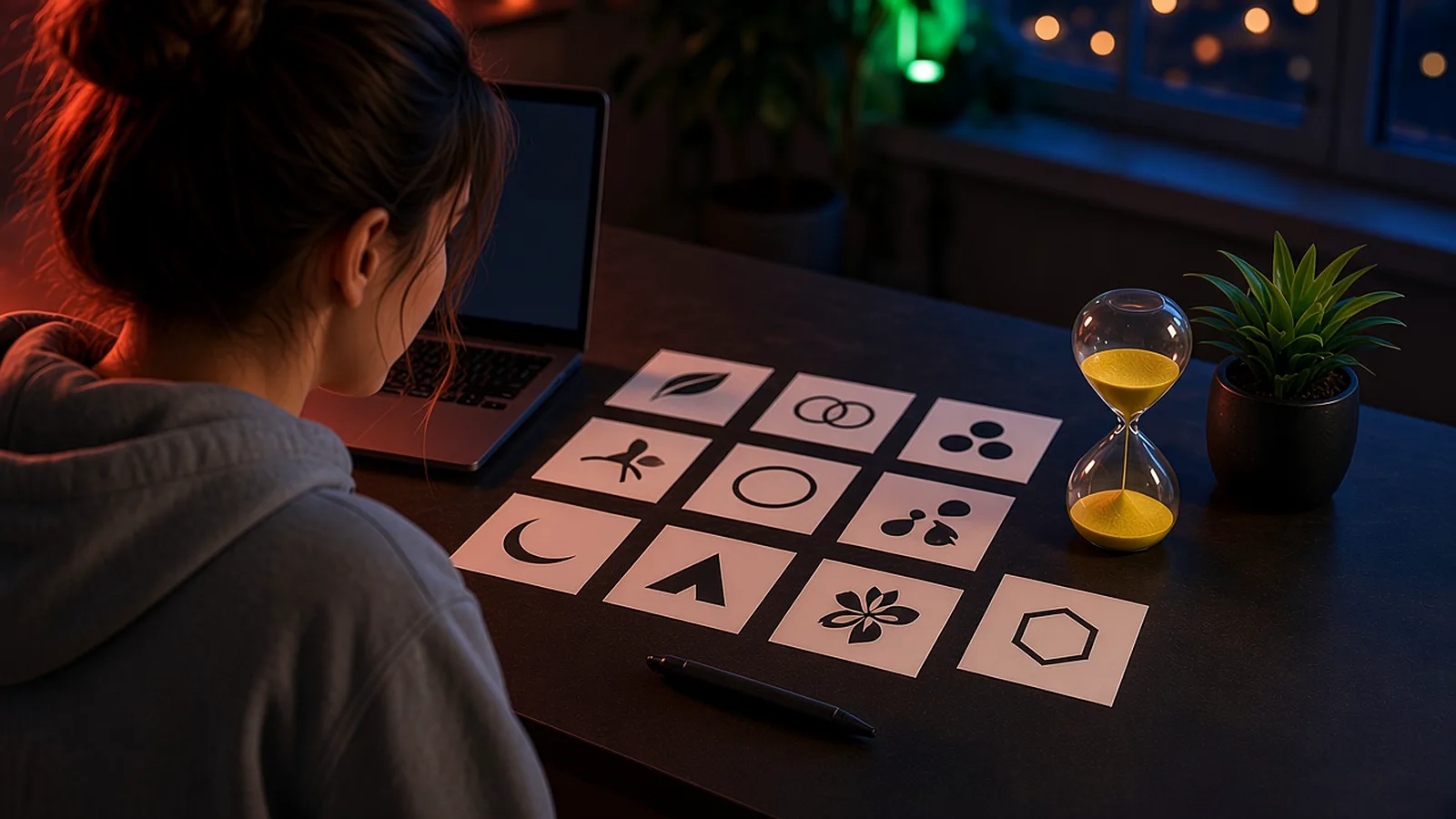
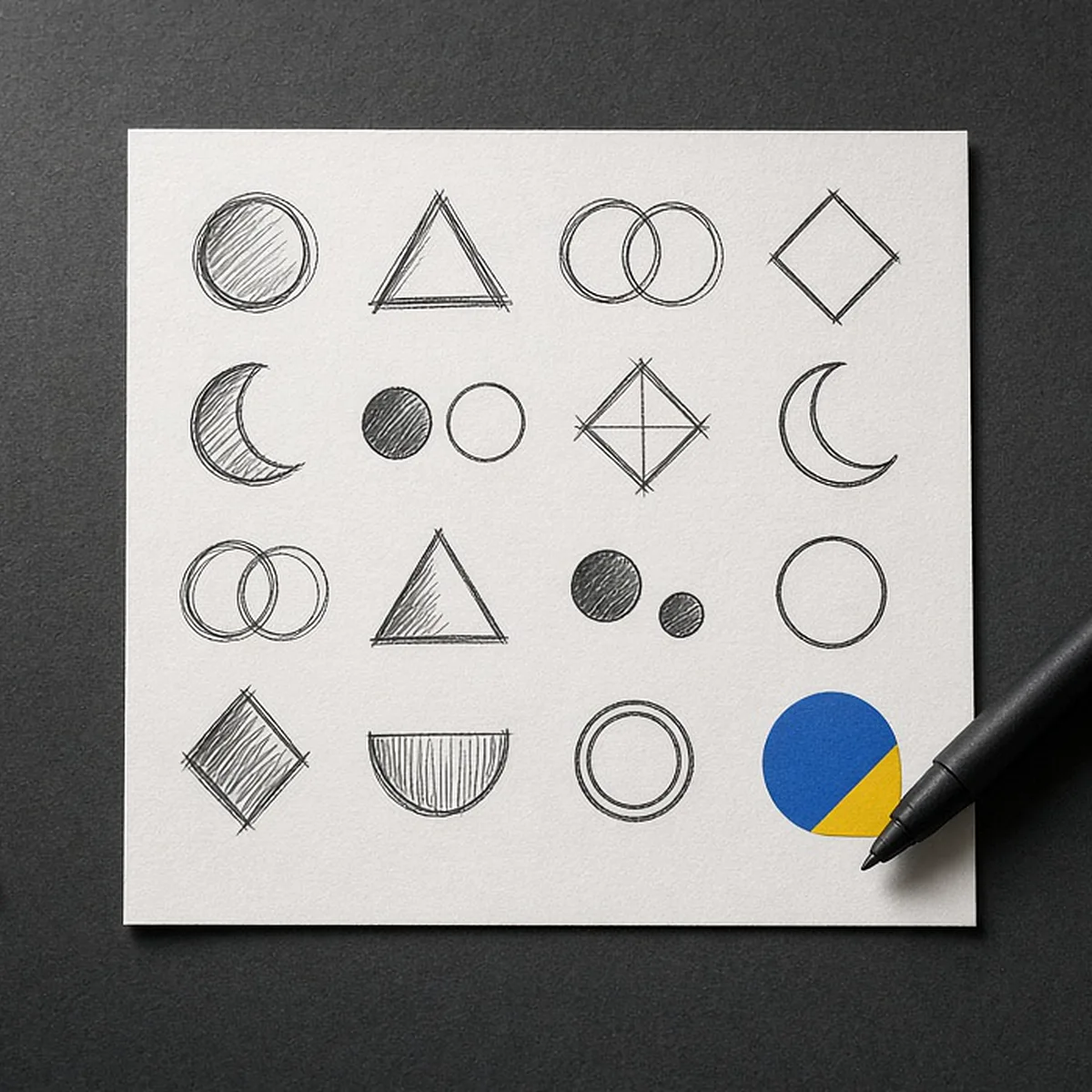
Then the fun part: seven minutes, 20 thumbnails. Small boxes, thick marker, no erasing. This is where the Creative work happens: on paper, at speed, before any software can slow you down. Try three styles: your full name in a strong font, your initials, and a simple symbol beside the name. Ugly is allowed. Speed is the point. BDC also notes that a complex or cluttered logo can be hard to see on a phone11, so circle the two simplest ideas that still hint at what you do.
Pro move: keep the winning sketch bold and dark on white paper. Inkscape’s Beginners’ Guide says its Trace Bitmap tool is ideal for dark silhouettes in front of a bright background12, so a clean marker sketch can become an editable vector in a few clicks.
Minutes 15-25: Pick One Font and Two Colours
Fonts first. Open Google Fonts, type your business name into the preview box, and shortlist three fonts. Pick ONE. The test: does it sound like your three words? Google also confirms you can change the slope, thickness and letter spacing of text made with its fonts in a design tool, because the result is an image of text, not a new font2. That’s your green light to tweak the spacing until it feels like yours.
Now colour. Open Coolors, hit the spacebar, lock any colour you like and keep going until something clicks3. Keep it tight: one main colour plus one dark neutral. Fewer colours means fewer decisions every time you use the logo.
Selling across borders? BDC advises checking what colours mean in different cultures, so your logo isn’t perceived negatively in certain markets11. If your customers are spread across the US, the UK, Australia and the Caribbean, a two-minute search on your main colour is cheap insurance.
Then run the contrast check. WebAIM’s checker explains that WCAG 2.0 level AA asks for a contrast ratio of at least 4.5:1 for normal text and 3:1 for large text, and that WCAG 2.1 asks for at least 3:1 for graphics4. Paste your main colour’s hex code against white, then against black. If it struggles on both, nudge it darker or lighter. Discipline beats your favourite shade.
Minutes 25-45: Build It in Inkscape, Photopea or Canva Free
Twenty minutes to turn a sketch into a clean file. Pick ONE route and commit.
The Inkscape route (best if you can install software). Photograph your best sketch. In Inkscape, bring it in with File > Import, select it, then choose Path > Trace Bitmap12. The guide calls Brightness cutoff the most frequently used mode, creating a silhouette-like path, while Centerline tracing works best for handwritten text and line drawings12. Click Apply, delete the photo underneath, and tidy up. Then add your name with the Text tool, using the Google Font you downloaded and installed. Because Inkscape works in vectors, your logo stays crisp from a sticker to a banner5.
The Photopea route (browser only). On a shared or locked-down computer? Photopea runs in the browser and processes files on your own device6. Build with its shape and text tools, then use File > Export As to save a PNG or an SVG13.
The Canva Free route (fast, with two catches). Catch one: Canva’s own help centre says its logo templates and stock graphics are non-exclusive, so other users can use the same content. For a logo that’s exclusive to you, it says to build from scratch with its fonts and simple lines and shapes14. Skip anything with a little crown icon, too: that marks Pro content, which shows a watermark for free users15. Catch two: downloading with a transparent background, which Canva itself calls ideal for logos, is only available on paid plans16, and SVG downloads are paid as well17. On Canva Free you’ll get your logo on a solid background. That works for a profile picture. For a transparent master file, rebuild the final version in Inkscape or Photopea.
Whichever route you take, keep the name big, the symbol simple and the spacing generous. Stoic reminder: you control the work, not the applause. Ship the best version this hour allows.
Minutes 45-55: Stress-Test It Before You Ship It
Ten minutes of trying to break your logo. If it survives, it ships.
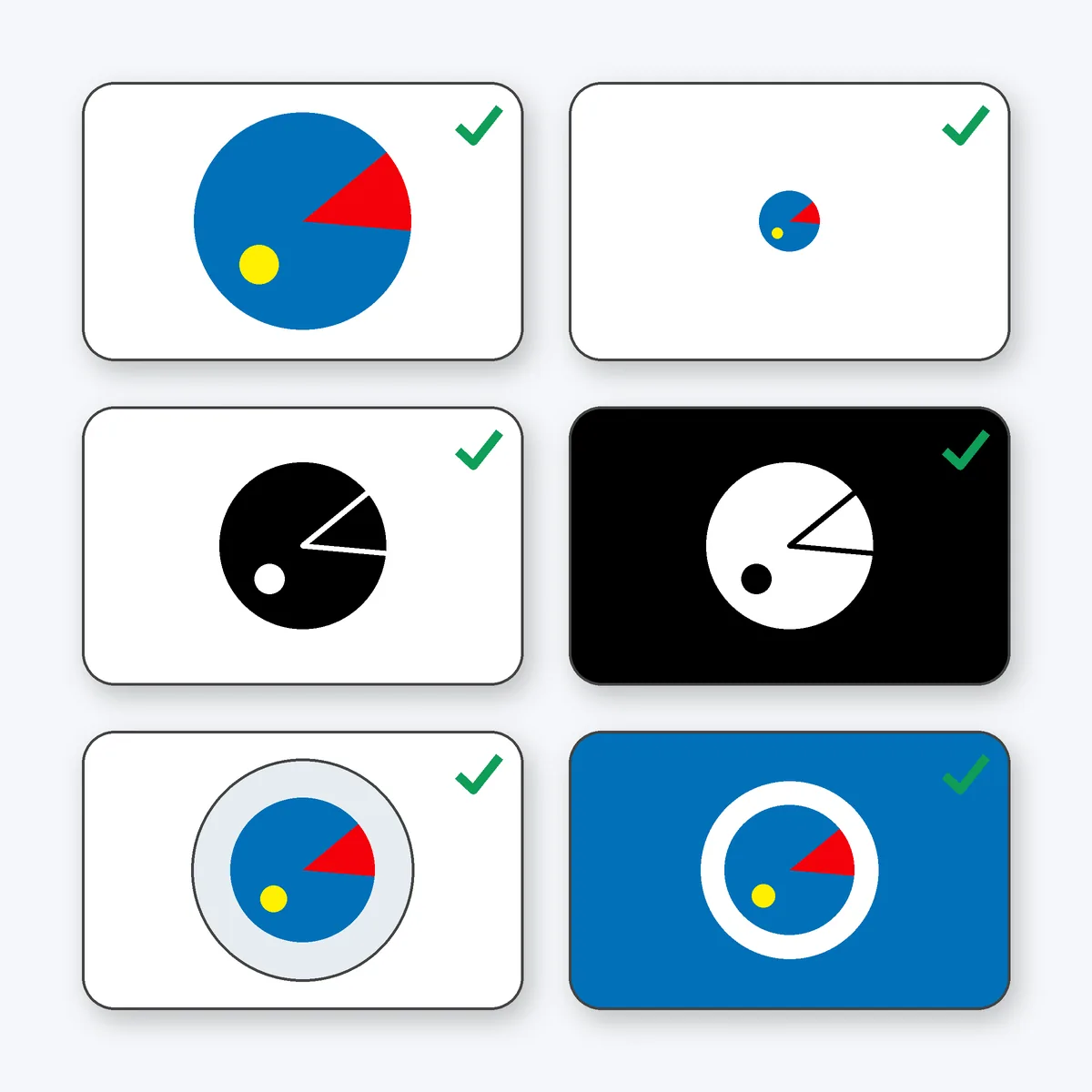
- Shrink it. Google’s favicon guidance for search results asks for a square icon of at least 8×8 pixels and recommends going larger than 48×4818. View your icon version at 48 pixels. If you can’t tell what it is, simplify.
- Kill the colour. Try solid black on white, then white on black. The NZ checklist wants a logo flexible enough for signage, stationery and advertising9, and Queensland’s wants it versatile10. A logo that only works in full colour fails that test fast.
- Go round. If you’ll use it as a circular profile picture, crop it to a circle and check nothing important gets chopped off.
- Message three people one question: “What do you think this business does?” Their replies can land after your hour is up. The NZ guidance says your logo should be a clue to what you do9. If nobody gets close, adjust the symbol or add a short descriptor under the name.
Feedback stings sometimes. Take it as data, not as a verdict on you. That’s the Courageous part: showing it before it feels finished.
Minutes 55-60: Export Your Free Logo Kit
Last five minutes. Save these into one folder and back it up to cloud storage:
- Master SVG. Inkscape saves SVG as its main format5, and Photopea can export SVG13.
- Transparent PNG. Inkscape’s guide notes that beginners are sometimes surprised their exported PNG has a transparent background (exactly what you want here), and shows how to set a white background in Document Properties when you need one19.
- One-colour versions in black and in white, for receipts, stamps and dark backgrounds.
- A square icon with just your symbol or initials.
- A favicon pack. favicon.io turns an image, text or SVG into a favicon.ico plus PNG icons for browser tabs, Apple devices and Android in one download7.
Name files so future-you can find them, for example northside-logo-full.svg and northside-icon-white.png. Done. You’ve got a logo kit.
Your Move
One hour, one loop: brief, sketch, font, colours, build, test, export. Zero budget, no designer, and a logo that’s simple, readable at small sizes and yours.
Here’s your mission this week:
- Block 60 minutes in your calendar today. It’s Monday, after all.
- Run the timer and ship version one, even if it isn’t perfect.
- Put it everywhere: profile pictures, invoices, your email signature and your website tab.
- Book a check-in for three months from now to refine it with real customer feedback.
The Side Hustle Tribe exists to help 1,000 ambitious people turn their side hustles into main hustles by 2028, and looking the part is one small, very doable step on that road. We got this. Ready to build the business behind the logo? Launch Your Hustle →
Where the numbers come from
This how-to carries no market statistics. Every tool fact, standard and piece of guidance above is named in the text and numbered here. All tool pages were checked on 5 October 2026; free plans and features can change, so check the page before you rely on it.
- Business Gateway (Scotland), Branding Basics: How to Define, Create, and Share a Unique Identity for Your Business, Business Gateway, 2026 (undated page, read 5 October 2026). bgateway.com
- Google, FAQ (Google Fonts), Google for Developers, 2026. developers.google.com
- Coolors, Coolors – The super fast color palettes generator!, Coolors, 2026. The tool’s own product page. coolors.co
- WebAIM (Utah State University), Contrast Checker, WebAIM, 2026. webaim.org
- Inkscape Project, Inkscape README, Inkscape on GitLab, 2026. gitlab.com
- Photopea, Photopea | Online Photo Editor, Photopea, 2026. The tool’s own product page. photopea.com
- favicon.io, The Best Free Favicon Generator, favicon.io, 2026. The tool’s own product page. favicon.io
- The GIMP Team, About GIMP, GIMP, 2026. gimp.org
- New Zealand Government (MBIE), Creating your brand, business.govt.nz, 2025. business.govt.nz
- Queensland Government, Branding your business, Business Queensland, 2022. business.qld.gov.au
- BDC (Business Development Bank of Canada), How to create a company logo, BDC, 2023. bdc.ca
- Inkscape Beginners’ Guide, Tracing an Image, Inkscape Manuals (Read the Docs), 2026 (guide written for Inkscape 1.3). inkscape-manuals.readthedocs.io
- Photopea, Opening and Saving (Learn Photopea), Photopea, 2026. photopea.com
- Canva, Trademarking logos created on Canva, Canva Help Center, 2026 (undated page, read 5 October 2026). canva.com
- Canva, Licensing explained, Canva, 2026 (undated page, read 5 October 2026). canva.com
- Canva, Download design with transparent background, Canva Help Center, 2026 (undated page, read 5 October 2026). canva.com
- Canva, Choose the right download file type for your Canva design, Canva Help Center, 2026 (undated page, read 5 October 2026). canva.com
- Google, Define a favicon to show in search results, Google Search Central, 2026. developers.google.com
- Inkscape Beginners’ Guide, Exporting a PNG File, Inkscape Manuals (Read the Docs), 2026 (guide written for Inkscape 1.3). inkscape-manuals.readthedocs.io