

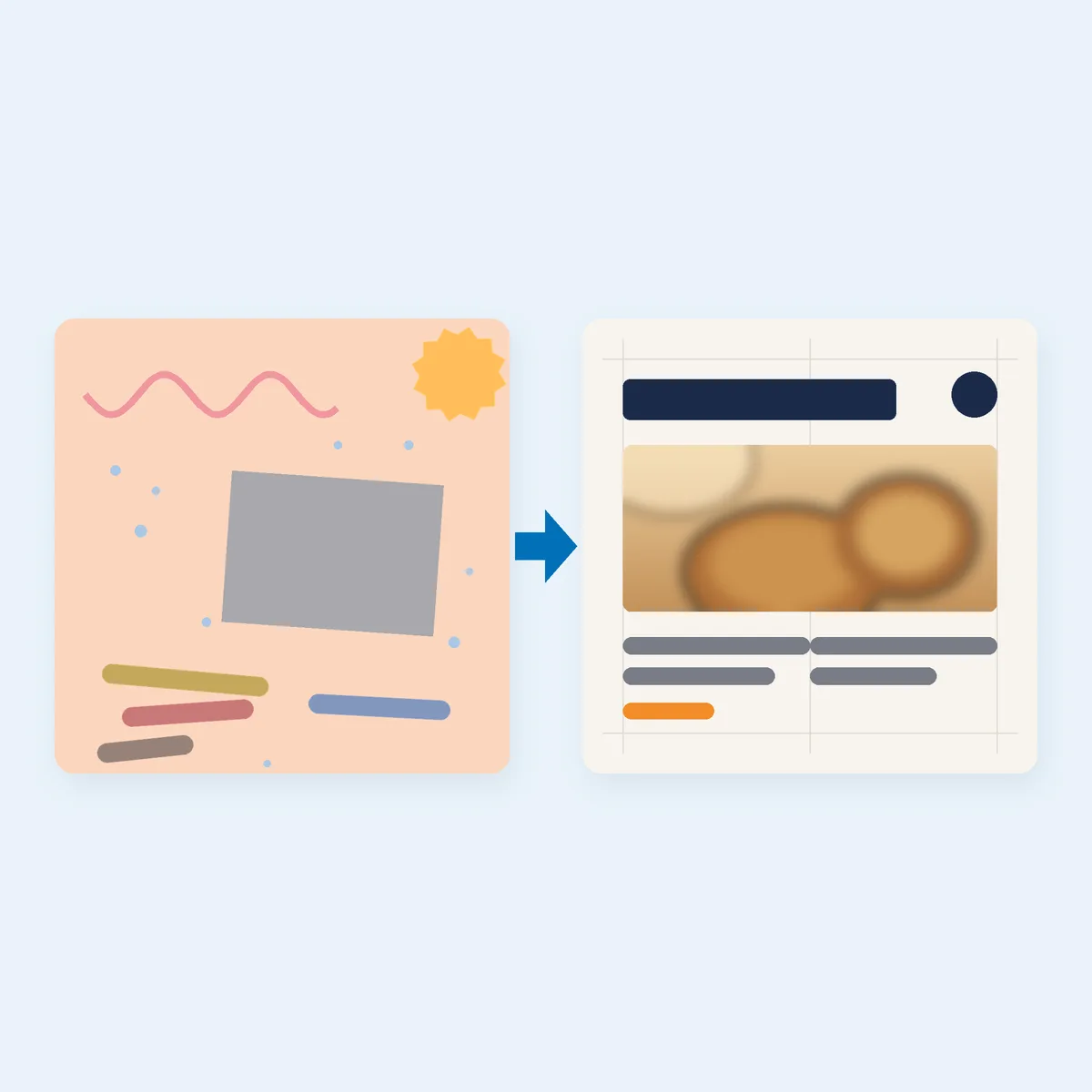
You’ve seen it a hundred times. A café, a coach and a cleaning company all post the same pastel quote card, with the same script font, the same stock photo of a latte and the same wavy line in the corner. Nobody copied anybody. They all just clicked the same free template and changed the words.
Free templates aren’t the problem. Using them straight out of the box is. Canva’s own licensing page says it plainly about its logo templates: other Canva users will be free to use the same content in their designs1. So if you want to look like a brand, not a template, the work happens after you click.
This post walks through a full makeover of ONE free template: fonts, colours, photos, layout and spacing, logo, and then the same look carried across a social post, a story and a flyer. Everything here uses Canva Free. Where a handy feature is Pro or limited on the free plan, we say so plainly and give you a free workaround.
What Canva Free Gives You (and What It Doesn’t)
Before you start, know which tools are on your side of the paywall. Here’s what we checked on Canva’s own pricing and help pages.
On Canva Free:
- The drag-and-drop editor and free templates, plus one Brand Kit with three colours only2
- Your own uploads, up to 5GB of media, including JPEG, PNG and SVG images3
- Font, colour and spacing controls on any text or element4
- Positioning, alignment, rulers and guides (more on these in Step 4)
Pro or paid-plan only (so we won’t rely on them):
- More brand colours and colour themes. Free users get one colour palette with up to three colours, and colour themes are for paid plans5.
- Uploading your own fonts. Canva lists font uploads for Pro, Teams, Business, Education and Nonprofits users6.
- Magic Resize. Canva’s resize help page lists Pro, Business, Enterprise, Education, Higher education, Nonprofits and Teams as the plan types7.
- Background Remover. Canva says it’s available on paid plans only8.
- Transparent-background downloads. Also limited to paid plans9.
- Pro content. Hover over a photo, graphic or template in the library: if a little crown appears, it’s Pro, and free users see a watermark on it1.
That list sounds like a lot of “no”. It isn’t. Every one of those has a free route, and you’ll meet each one below.
Before You Start: One Template, One Business
Pick one free template for the format you post most, usually a square social post. Hover first and skip anything with a crown. Choose on structure, not looks: you want a clear spot for a headline, one image area and some breathing room. You’re about to change the fonts, colours and photos anyway, so ignore the pastel peach.
To keep this concrete, we’ll make over a free “new product” post for an invented business: Tide & Crumb, a small bakery in Cork, Ireland, launching a weekend sourdough box. (Made up for this post. Swap in your own business as you read.)
Before you touch the template, write a three-line brand note in a document or on paper:
- Fonts: one for headings, one for body text.
- Colours: your main, support and accent colours, as hex codes.
- Photo style: for Tide & Crumb, “natural light, flour on the bench, real hands, no studio white”.
That note does the job a paid Brand Kit would do for fonts. It’s free, and it lives wherever you can find it fast.
Step 1: Swap the Fonts
Template fonts are the fastest giveaway. Script headings on promo posts are common, so changing the fonts first makes a big difference fast.
Select the headline, then select the font name on the toolbar and pick a new one. Canva’s font panel has a filter, and you can filter by price as well as language4. Use it to stick to free fonts, so nothing gets watermarked later.
Pick two fonts and no more:
- A heading font with personality. Tide & Crumb uses a sturdy serif that feels like an old bakery sign.
- A clean, readable body font for prices, dates and details.
Then adjust the details templates rarely get right. In the text toolbar’s advanced settings you can change letter spacing and line spacing4. Tighten line spacing on a two-line headline so it reads as one block. Open the letter spacing slightly on small all-caps labels.
Why not upload your own brand font? On Canva Free you can’t; font uploads are for paid plans6. The workaround is simple: choose your fonts from Canva’s free library, write the exact names in your brand note, and use those two names everywhere.
Step 2: Apply Your Brand Colours
Now replace the template’s colours with yours. If you haven’t picked brand colours yet, our 3-colour rule guide walks you through choosing three and checking their contrast. We won’t repeat that here.
Canva Free gives you one Brand Kit palette with up to three colours5, which happens to suit a three-colour brand nicely. Add your main, support and accent colours there so they’re one click away.
Then recolour the template:
- Select an element, then select its colour tile on the toolbar.
- To use a colour that isn’t in the panel, select Add a new color (the rainbow tile) and enter your hex code. You can also use the eyedropper to pick a colour from your design10.
- When you change a colour, Canva lets you replace it on the current page or on all pages10. That swaps every instance of the template’s peach for your colour in one go.
- Recolour the background last. Templates often hide a second background colour behind a shape, so click around the edges to find it.
Want a shortcut for text? Copy style, the paint roller on the toolbar, copies a text box’s font style, size, colour and alignment onto another one11. Format one headline properly, then paint the rest.
For Tide & Crumb, that means a warm off-white background, a deep navy for text and an oven-orange accent used on one thing only: the “Pre-order your box” line.
Step 3: Replace the Stock Photos
Stock photos are the second giveaway. The same latte, laptop and smiling-person shots turn up again and again, because everyone is picking from the same free library.
Use your own photos instead. Upload them (Canva Free accepts JPEG, PNG, HEIC/HEIF, WebP and SVG images, within your 5GB)3, then drag a photo over the template’s image area. If it sits in a frame, the photo snaps into place. Double-click it to resize or move it inside the frame until the crop looks right12.
A few rules make phone photos look intentional:
- Shoot in the same light every time. Tide & Crumb shoots by the same window in the morning.
- Keep backgrounds plain: a clean bench, a wall, a wooden board.
- Crop tighter than feels natural. A loaf filling the frame beats a loaf lost on a counter.
- Pick one edit look and repeat it, so a month of posts looks like one set.
What about cutting a product out of its background? Background Remover is a paid-plan feature8. The free workaround is to get the background right in the camera: shoot against a plain wall or a sheet of card in your brand’s background colour, so the photo already blends into the design.
Step 4: Fix the Layout and Spacing
This is where a template starts to look like your design. Most templates are built for any business, so their spacing is generic, and their decorative extras (squiggles, dots, tilted badges) are the same ones everyone else has.
Start by deleting. Remove every decorative element that doesn’t help your message. Then line up what’s left:
- Turn on guides. Go to File, then Rulers and guides, then Add guides. Choose a preset such as 3 columns or a 3×3 grid, or set custom guides13. Snap your headline, photo and details to the same lines.
- Respect the margins. Canva’s margin guidance is to keep text and logos inside the safe zone, away from the edges14. Give everything at least that much room.
- Align with Position. Select elements and use Position to align them to the page or to each other, move layers forward or back, and group items that belong together15.
- Use exact numbers. For repeat placements, set an element’s exact X and Y position in pixels from the Position panel16. Put your logo at the same coordinates on every post and it becomes part of the brand.
Then create a simple hierarchy: one big headline, one image, one line of detail, one call to action. If a viewer’s eye bounces around, take something out.
Step 5: Add Your Logo
Your logo is what turns a nice design into a branded one. If you don’t have one yet, build it first with our free logo-in-an-hour guide, then come back.
Upload your logo file. Canva accepts PNG and SVG uploads3, so a logo exported with a transparent background from a free tool will sit cleanly on your colours.
One catch to know: on Canva Free you can’t download designs with a transparent background, because that’s limited to paid plans9. That only matters when you export out of Canva. Keep your transparent master logo file outside Canva, and upload it whenever you need it.
Place the logo small and consistent: same corner, same size, same X and Y position on every design. Don’t stretch it, recolour it at random or drop it on a busy part of a photo. A logo that sits quietly in the same spot every time looks more professional than one that shouts.
Step 6: Carry It Across a Post, a Story and a Flyer
One great post doesn’t make a brand. The same look across formats does. Tide & Crumb needs a square post, a vertical story and a printed flyer for the shop window.
Canva’s one-click way to do this, Magic Resize, isn’t on Canva Free7. Here’s the free route:
- Start each format as its own design. Pick a free template in that format, or use Custom size on the homepage to set your own dimensions17.
- Bring your style across. In the new design, open the page’s Styles panel. As well as suggested palettes and font sets, it shows recent styles from your previous designs, and you can apply a style to all pages18. Canva also lets you copy the style and format of a recent design11.
- Rebuild the layout, don’t squash it. A story is tall, so stack headline, photo and details vertically. A flyer has room for a short description and opening hours. Use the same fonts, colours, photo style and logo position, and change only the arrangement.
- Check the flyer for print. Turn on margins so nothing important sits near the trim14.
Lay the three designs side by side. If you covered the logo, would someone still know they’re from the same business? If yes, you’ve done it.
The “Looks Templated” Checklist
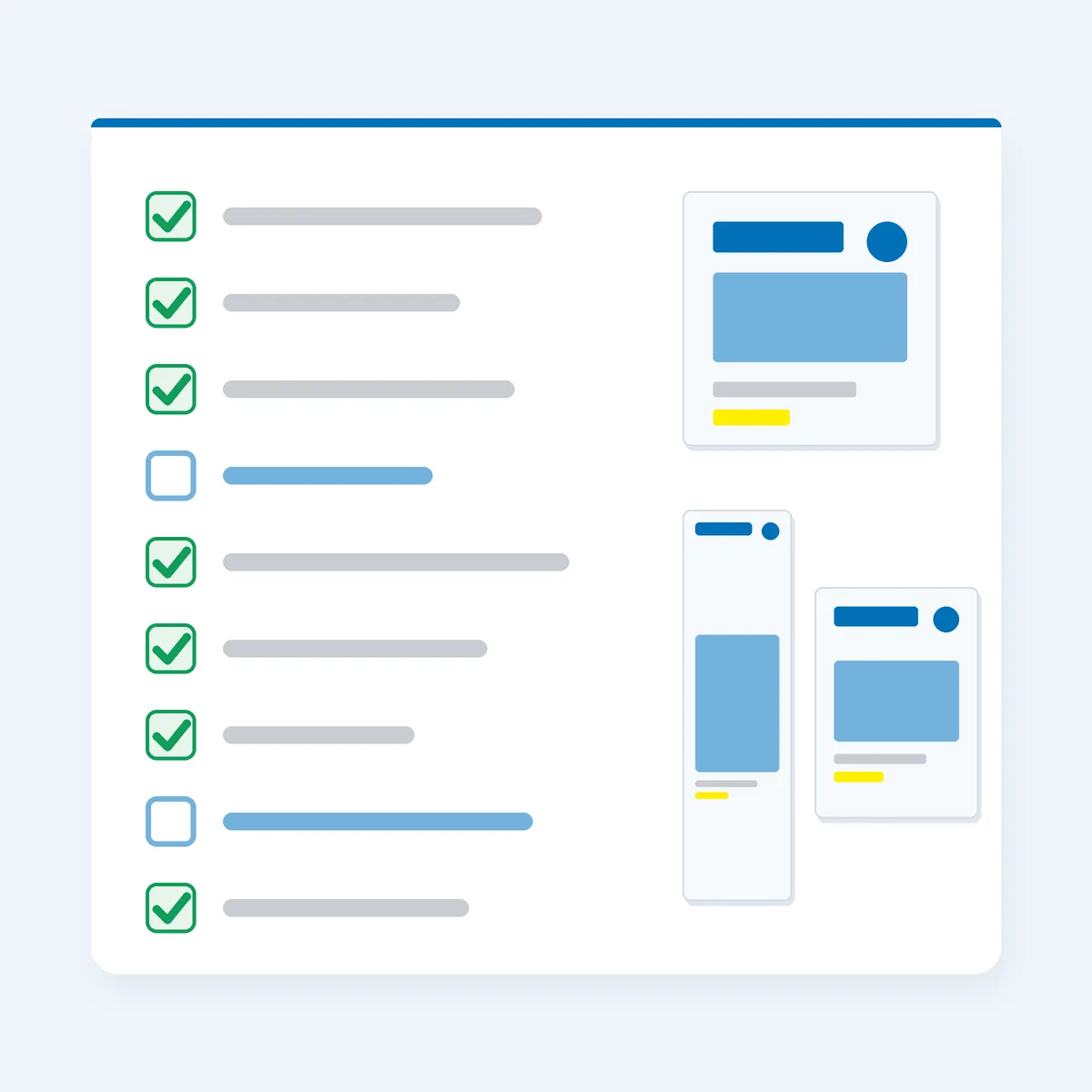
Run any design through this before you post it. Each “yes” is a sign the template is still showing:
- The heading font is the template’s original font.
- Any of the template’s original colours are still there, including hidden background shapes.
- A stock photo or stock illustration is doing the main job.
- There are decorative extras you didn’t choose (squiggles, dots, badges, frames).
- Placeholder text or dummy details are left anywhere.
- Something shows a crown or a watermark.
- Text sits near the edges, outside the margins.
- Your logo is missing, or in a different place from your last post.
- Your post, story and flyer don’t look like they belong together.
Fix every “yes”, and the template disappears into your brand.
Same Makeover, Ten Markets
The method doesn’t care where you trade. A few made-up examples of the same six steps:
- A dog groomer in Auckland, New Zealand, swaps a cartoon-paw template for real before-and-after photos and two clean fonts.
- A bookkeeper in Calgary, Canada, turns a busy finance template into a calm two-colour layout with one clear call to action.
- A yoga teacher in Leeds, UK, keeps her logo in the same corner across class posts, stories and a studio flyer.
- A barber in Dublin, Ireland, swaps the template’s stock models for photos of his own chairs and keeps the same two fonts on every price list.
- A food truck in Austin, US, shoots its tacos on the same steel counter every time.
- A candle maker in Brisbane, Australia, photographs every jar against one sheet of card in her background colour.
- A dive-gear repair service on Grand Cayman, Cayman Islands; a fishing charter in Nassau, the Bahamas; and a sailing crew in Tortola, BVI, each pick one accent colour and use it only for bookings.
- A plant nursery in Durban, South Africa, sets its logo position by X and Y coordinates once and reuses it on every design.
Different products, same discipline.
Your Move
Pick one free template you’ve already used, or one you’re about to. Run the six steps: fonts, colours, photos, layout, logo, formats. Then run the checklist and fix every “yes”.
It’s creative work with a disciplined backbone: the same fonts, colours, photo style and logo spot, every time, until people recognise you before they read your name. We’re helping 1,000 people turn their side hustles into main hustles by 2028, and looking like a real brand is one free step on that road.
Your designs need somewhere to send people. A simple website gives every post, story and flyer a home base. Get your site online with Side Hustle Hosting. Let’s freaking go!
Where the numbers come from
Canva features and plan limits come from Canva’s own pricing and help pages, read 18 October 2026. Canva updates its plans and features, so check the current page before you rely on a limit. Example businesses in this post are invented.
- Canva, Licensing explained (Free vs Pro content, crown icon, watermark, non-exclusive content), Canva, 2026 (undated page, read 18 October 2026). canva.com
- Canva, Plans and pricing (Canva Free: 1 Brand Kit, 3 colors only; Pro premium tools: resize, translate, remove background), Canva, 2026 (read 18 October 2026). canva.com
- Canva, Check file upload formats and requirements for Canva, Canva Help Center, 2026 (read 18 October 2026). canva.com
- Canva, Format text, Canva Help Center, 2026 (read 18 October 2026). canva.com
- Canva, Setting up and using Brand Kit color palettes, Canva Help Center, 2026 (read 18 October 2026). canva.com
- Canva, Upload and use Brand Kit fonts, Canva Help Center, 2026 (read 18 October 2026). canva.com
- Canva, Resize designs and size limits (Magic Resize; plan types listed), Canva Help Center, 2026 (read 18 October 2026). canva.com
- Canva, Background Remover, Canva Help Center, 2026 (read 18 October 2026). canva.com
- Canva, Download design with transparent background, Canva Help Center, 2026 (read 18 October 2026). canva.com
- Canva, Change element colors, Canva Help Center, 2026 (read 18 October 2026). canva.com
- Canva, Copy style and format, Canva Help Center, 2026 (read 18 October 2026). canva.com
- Canva, Use frames and crop images into a shape, Canva Help Center, 2026 (read 18 October 2026). canva.com
- Canva, Add, unlock, and remove guides, Canva Help Center, 2026 (read 18 October 2026). canva.com
- Canva, Use margins, bleed, rulers, and crop marks, Canva Help Center, 2026 (read 18 October 2026). canva.com
- Canva, Group, layer, and align elements, Canva Help Center, 2026 (read 18 October 2026). canva.com
- Canva, Move elements in your design (X and Y coordinates), Canva Help Center, 2026 (read 18 October 2026). canva.com
- Canva, Design from scratch (custom size), Canva Help Center, 2026 (read 18 October 2026). canva.com
- Canva, Find color palettes and font combinations (Styles), Canva Help Center, 2026 (read 18 October 2026). canva.com