

Here’s how most budget brands look: a logo in one blue, a banner in a different blue, social posts in whatever colors the template came with, and a price list in bright red because red felt urgent. None of it is ugly on its own. Together, it looks like five businesses sharing one name.
The fix costs nothing. It’s called the 60-30-10 color rule, and it’s the quickest brand polish a new founder on a budget can do. Three colors, three jobs, fixed proportions. In this guide you’ll learn the rule in plain English, pick your three colors with a free palette tool, check that people can actually read them, and lock it all into a one-page color sheet. If you’ve already built a logo with our free one-hour logo guide, you’ve done half the work: that guide has you pick two colors. This one finishes the set.
The 3-Color Rule in Plain English
Vision Australia, a blindness and low vision services organization, describes the 60-30-10 rule as dividing a design into three colors: 60% primary (dominant), 30% secondary (supporting) and 10% accent (contrast)1. It notes the ratio became popular in interior design before moving into digital design1.
Here’s what each role does:
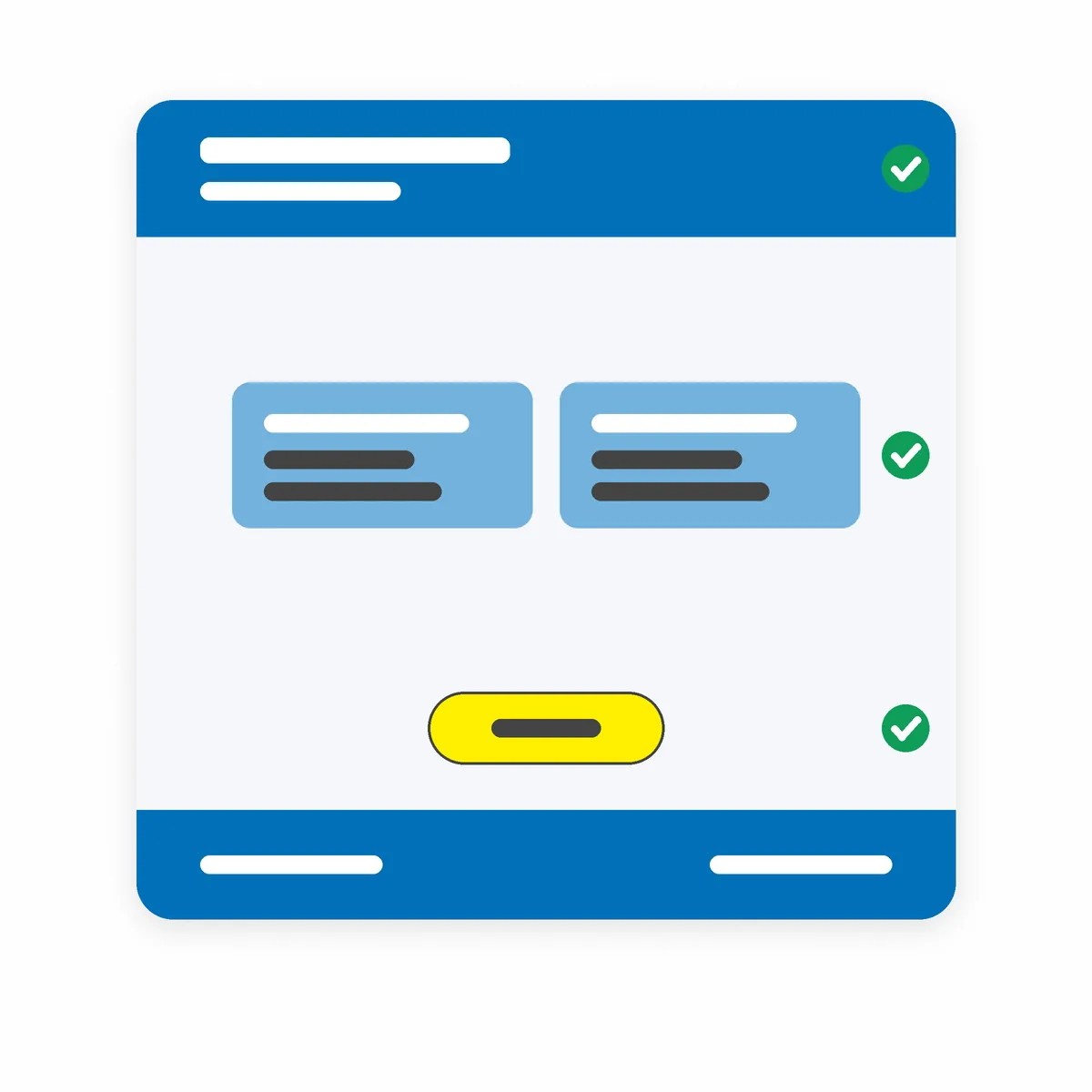
- Dominant, the 60: the calm base. Vision Australia suggests a neutral such as light grays, off-whites or soft, muted colors1, covering backgrounds and big empty space.
- Secondary, the 30: your structure color. Headers, footers, cards, headings and larger elements.
- Accent, the 10: the spark. Buttons, links and the one thing you want people to notice first.
freeCodeCamp’s explainer frames the same split as “about” 30% and “usually” 10%2, and that’s the right attitude. Nobody is measuring your website with a ruler. The point is the order: one calm field, one structural color, one spark.
Why does this make a brand look more expensive? Our view: restraint reads as confidence. When every surface shouts, nothing does. When one color is allowed to shout, people know exactly where to look, and the whole thing feels deliberate.
Pick Your Three Colors in Coolors (Free)
Coolors says it is “always free to use for everyone”, with an optional paid Pro plan3. The free plan generates palettes of up to 5 colors, saves up to 10 palettes and can pick colors from an image3. That’s plenty for this job. Its homepage tells you how to start: hit the spacebar to generate palettes4.
Here’s the 20-minute version:
- Start from what you already have. If you have a logo color, that’s usually your secondary. Use the free pick-from-image option on your logo or a photo you love.
- Find your dominant neutral. Generate until a soft off-white, light gray or pale tint appears that sits happily next to your secondary. Dull is good here. This color fills most of the space.
- Choose one accent. Pick a color that clearly stands apart from the other two. Just one. Two accents means no accent.
- Save the palette and write down the three hex codes. A hex code is the six-character code for a color, and it’s how you’ll keep every tool consistent.
One catch: Coolors lists “check palette contrast” as a Pro feature3. You don’t need it. The next step does the same job free.
Check Contrast Before You Fall in Love
A beautiful palette that people can’t read is a hobby, not a brand. The official standard here is the W3C’s Web Content Accessibility Guidelines (WCAG) 2.2, a W3C Recommendation published in December 20245. Three of its rules matter most for a small brand:
- Text: normal text needs a contrast ratio of at least 4.5:1 against its background, and large-scale text at least 3:15. Large means at least 18 point, or 14 point bold5.
- Buttons, icons and charts: the parts people need to see to use or understand them need at least 3:1 against the colors next to them5.
- Never color alone: color can’t be the only way you show information or an action5. A red price with no other cue fails someone who can’t see red. Add a word, an icon or an underline.
WCAG gives text that’s part of a logo or brand name no contrast requirement5. Your logo gets a pass. Your website, price list and social captions don’t.
To test, use the free WebAIM Contrast Checker: enter a foreground and a background color as hex codes and it shows the ratio with a pass or fail for each level6. Test these three pairs:
- Your body text color on your dominant color.
- Text on your secondary color, such as a header or footer.
- Your button label on your accent color.
If a pair fails, nudge the lighter color lighter or the darker color darker and test again. Keep the hue; change the lightness.
Three accessibility notes that catch people out:
- No rounding up. WebAIM points out that a gray of #777777 on white comes in at 4.47:1, and that you can’t round it up to 4.5:17. Close is a fail. Darken it a touch.
- Links need more than color. WebAIM’s advice is to keep the underline on links in body text. If you remove it, the link color needs 3:1 contrast against the surrounding text plus a visual cue other than color on hover and keyboard focus7. Keeping the underline is easier.
- There’s a higher bar if you want it. WCAG’s stricter AAA level asks for 7:1 for normal text and 4.5:1 for large text7. You don’t need it for a small brand, but our example navy-on-off-white pair below, at about 10.5:1 by our calculation, clears it, so it’s worth checking yours.

A Worked Example (With Made-Up Colors)
Say your three colors are a warm off-white (#F7F4EF) as dominant, a navy (#1F3A5F) as secondary and an orange (#E4572E) as accent. These are our own example colors, and the ratios below are our calculations using WCAG’s contrast formula5. Check your own in WebAIM.
- Navy text on off-white: about 10.5:1. Comfortably passes for body text.
- White text on the navy header: about 11.5:1. Passes.
- White label on the orange button: about 3.7:1. That passes for large text but fails for normal-size text. Our fix was to darken the orange to #C2410C, which gives about 5.2:1 and passes, while still reading as the same orange family.
- The orange button against the off-white page: about 3.4:1, which clears the 3:1 bar for buttons and other components.
That’s the whole method: same hues, adjusted lightness, every pair tested.
Run the Rule Across a Logo, a Website and a Social Post
Here’s the same three-color set, step by step, on the three assets most new brands need first.
The logo. Use the navy for the mark and the name, on the off-white or on plain white. Keep the orange for one small detail at most, such as a dot or an underline stroke. A logo that already holds all three colors leaves the accent nowhere new to go.
The website.
- Set the page background to the off-white. That’s your 60.
- Make the header, footer and headings navy. That’s your 30.
- Make buttons the darkened orange (#C2410C) with white labels. That’s your 10.
- Run the four checks from the worked example, plus your link color against your body text.
A social post.
- Start with an off-white background, or a photo with plenty of calm space.
- Set the headline in navy.
- Use the orange for exactly one thing: the price, the arrow or the call to action.
- Save it as a template so the next post starts with the same three colors.
Do these three in that order and every later asset copies from them.
Apply It to a Product or Store Photo
Photos bring their own colors, and that’s fine. You’re not repainting your products. You’re choosing what surrounds them:
- Background and props: shoot on your dominant neutral where you can, such as an off-white sheet, a pale wall or a light table. The product becomes the color story.
- One accent in frame: a ribbon, a tag or a cup in your accent color ties the photo to your brand without shouting.
- Text on photos: WebAIM notes that contrast rules also apply to text that sits inside an image7. Put text over a calm area, or place it on a solid panel in your dominant or secondary color, and test it like any other pair.
- Shop shelves and stalls: the same logic works in a physical space. Mostly neutral, structural color on signs and shelf strips, and accent only on the thing you most want picked up.
Map the Rule to Your Real Brand Assets
The rule only pays off when you apply it everywhere. Here’s how the split usually lands:
- Website: dominant on the page background, secondary on the header, footer and headings, accent on buttons and links.
- Social posts: a dominant background, secondary for the headline, and accent for a single highlight such as a price or arrow.
- Invoices and quotes: mostly dominant (white paper is fine), secondary for your name and table headings, accent for the total due.
- Packaging, stickers and cards: the same three colors in the same roles, even if the proportions shift with the shape.
A photo-heavy post won’t be a neat 60-30-10, and it doesn’t need to be. Keep the roles the same and let the photo do the talking.
Seven Ways Budget Brands Break the Rule
- Accent everywhere. If every heading, border and icon is the accent, it stops being an accent.
- A new color for every post. Templates bring their own palettes. Swap them for your three before you publish.
- Light-on-light text. If a bright yellow or light green fails as text in WebAIM, use it as a background or shape instead, with dark text on top.
- Color as the only signal. “Items in red are sold out” fails anyone who can’t tell red apart5. Say it in words too.
- Guessing the hex. Eyeballing “about that blue” in five different apps gives you five blues. Copy the hex code every time.
- Rounding a near-miss. A ratio just under 4.5:1 is a fail, not a pass. Adjust the color until it clears the bar.
- Testing once, on one screen. Test every new pair you add, not just the first three. The W3C’s own guidance puts it plainly: not everyone sees colors, or sees them the same way8.
Lock It In: Your One-Page Color Sheet
Make a single page you can share with anyone who designs for you, even if that’s only you in six months’ time:
- The three colors, each with its role (dominant, secondary, accent) and hex code.
- Your approved text pairs, with the contrast results from your WebAIM test.
- One line of rules, such as: “Accent only on buttons, links and one highlight per design.”
Here’s a template you can copy into any document:
- Brand name: …
- Dominant (60): name … | hex # … | used for: backgrounds, big empty space
- Secondary (30): name … | hex # … | used for: header, footer, headings, cards
- Accent (10): name … | hex # … | used for: buttons, links, one highlight
- Approved text pairs: text color on background color, ratio …:1, pass or fail
- Link style: underlined in body text, yes or no
- Never: two accents in one design, accent text on the dominant color unless tested
- Last checked: month and year
Save the palette in your free Coolors account too, but keep this page as the source of truth. Free plans change. Your sheet doesn’t.
Your Move
Open Coolors, find your three colors, test your three text pairs in WebAIM and write your one-page color sheet. Then fix the asset people see most first, whether that’s your website, your profile banner or your price list.
It’s a small, disciplined job, and it has to be done once and then kept to: same three colors, same roles, every time. Be creative inside the rule, not with it. We’re helping 1,000 ambitious people turn their side hustles into main hustles by 2028, and looking the part is part of the work. We got this. Ready to make it official? Launch Your Hustle →
Where the numbers come from
Every rule, tool feature and accessibility requirement above is numbered here. Tool plans were checked October 2026 (15 October 2026), and free plans change, so check the current page before you rely on them. We are not affiliated with any tool in this post.
- Vision Australia, Creating accessible digital colour palettes using the 60-30-10 design rule, Vision Australia, 2026 (undated page, read 15 October 2026). visionaustralia.org
- freeCodeCamp, What is the 60-30-10 Rule in Design? And How to Use it in Your Projects, freeCodeCamp, 2023. freecodecamp.org
- Coolors, Pricing (Free vs Pro plan and FAQ), Coolors, 2026 (read 15 October 2026). coolors.co
- Coolors, Coolors – The super fast color palettes generator!, Coolors, 2026. coolors.co
- W3C, Web Content Accessibility Guidelines (WCAG) 2.2, W3C Recommendation, 2024 (success criteria 1.4.1, 1.4.3 and 1.4.11). w3.org
- WebAIM, Contrast Checker, WebAIM (Institute for Disability Research, Policy, and Practice, Utah State University), 2026. webaim.org
- WebAIM, Contrast and Color Accessibility: Understanding WCAG 2 Contrast and Color Requirements, WebAIM, Institute for Disability Research, Policy, and Practice, Utah State University (read 15 October 2026). webaim.org
- W3C Web Accessibility Initiative, Understanding Success Criterion 1.4.1: Use of Color, W3C, WCAG 2.2 Understanding Docs (read 15 October 2026). w3.org