
You’ve got a hustle, a name and maybe a domain. What you haven’t got is a website, and that’s the only thing stopping a stranger from finding you at 11pm. Good news: WordPress describes its own install as something that usually takes less than five minutes1, so a first post inside 30 minutes is a realistic target for a focused beginner, not a promise.
This guide is for first-time web builders and store owners. We’ll go from a blank hosting account to a live site with a theme, a handful of settings, three key pages and your first post. You won’t write a line of code. Money examples are in US dollars unless we say otherwise, and every person and business here is invented.
Quick note: this is general information, not legal advice or a technical guarantee. Screens, menu names and defaults change between WordPress versions and between hosting companies, so your control panel may look different from our description. We describe the one-click install generically because every host dresses it up differently. Check what your own screen says before you click.
What You’re Actually Building (and Which “WordPress” You Need)
“WordPress” means two things, and mixing them up trips up most beginners. WordPress.com and WordPress.org both run on the same WordPress software. The main difference is hosting: WordPress.com includes managed hosting, while WordPress.org means you download the software and run it with a hosting provider of your choice, which is called self-hosting2.
This post is about the self-hosted route. You own the site, you choose the host, and you can add plugins and themes. The trade-off is that you manage more of it yourself. That’s why we spend a section on backups and updates later.
Here’s the stack in plain English:
| Piece | What it is | Who handles it |
|---|---|---|
| Domain | Your web address, like yourhustle.com | You register it, then point it at your host |
| Hosting | The computer that stores and serves your site | Your hosting company |
| WordPress | The software that lets you build pages and posts | Installed on your hosting, then managed by you |
| Theme | The look and layout | You choose it inside WordPress |
| Plugins | Extra features such as backups or a shop | You add them only when you need them |
Not sure you’ve got a domain and hosting that fit together? Start with our guide to the domain and hosting combo every beginner needs on day 1, then come back. If you’re still choosing, our post on choosing the right hosting for your hustle site walks through the decision.
Before the Clock Starts: Your Five-Minute Prep
Do this first so your 30 minutes isn’t spent hunting for passwords.
WordPress.org says it recommends that your host supports a recent PHP version, MariaDB or MySQL, and HTTPS. It also says that the hosts it lists support the requirements and more, and that the vast majority of the hosts out there meet the minimum3,4. You don’t need to understand those terms. You only need to ask your host one question: “Can my plan run WordPress?” WordPress.org even publishes a copy-and-paste message you can send to a host to ask exactly that3.
Have these ready:
- Your hosting login and the control panel link from your welcome email.
- Your domain name, already pointed at your hosting. If you bought it minutes ago, it may not be connected yet, so ask your host or registrar what to do.
- The email address you’ll use for site notifications. Pick one you actually read.
- A password manager or a notebook for the admin login you’re about to create.
- A site name and a one-line tagline. Rough is fine. You can change both later.
Also, only ever download WordPress from WordPress.org. The WordPress hardening guide is blunt about it: never download or install WordPress from any other website5. A one-click installer inside your hosting panel is the other normal route, and it’s the one we’re using.
Your 30-Minute Plan
Here’s the schedule. Treat it as pacing, not a stopwatch. Your host, your internet and your own indecision all change the real numbers.
| Minutes | Job | Where you do it |
|---|---|---|
| 0 to 8 | One-click install | Hosting control panel |
| 8 to 12 | Log in and look around | Your site’s /wp-admin address |
| 12 to 17 | Day-one settings | Settings menu |
| 17 to 22 | Pick a theme and add key pages | Appearance and Pages menus |
| 22 to 30 | Write and publish your first post | Posts, then Add New Post |
Let’s go!
Minutes 0 to 8: The One-Click Install From Your Hosting Control Panel
WordPress’s own install guide says many web hosts offer tools that install WordPress for you automatically1. WordPress’s beginner tutorial also refers to the “one-click install from your web host”6. Control panels that look like cPanel usually put this in a section for website or app installers, often with a WordPress tile. The exact names vary by host, so look for the word “WordPress”.
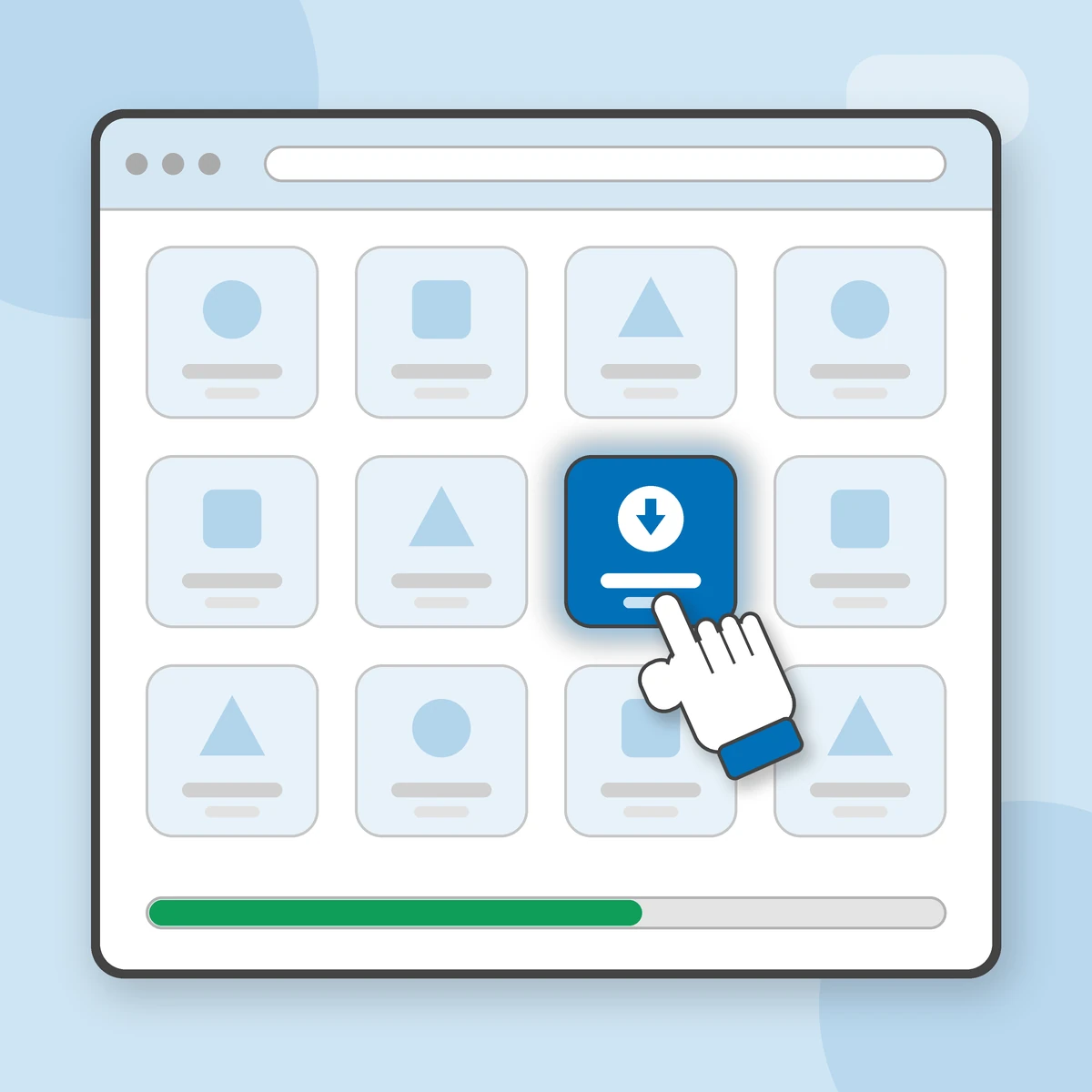
Here’s the generic flow:
- Log in to your hosting account and open the control panel.
- Find the installer. Look for an auto-installer or an apps section, then choose WordPress.
- Choose where it goes. Pick your domain from the list. If the installer asks for a protocol, choose the secure HTTPS option if it’s offered, because WordPress recommends hosts that support HTTPS3.
- Leave the folder box empty if you want the site at your main address. WordPress’s guide explains the difference: installing into the root of your domain puts the site at the plain address, while a subdirectory such as /blog puts it in its own folder1. Most new hustle sites want the root.
- Name the site. Add your site title and tagline. You can change them later in Settings.
- Create your admin login. Choose a username that isn’t obvious, a strong password and an email you check. WordPress’s hardening guide says to avoid passwords built from your own name, your username, your company name or your website name, to avoid dictionary words and short passwords, and to mix letters and numbers5.
- Skip the extras the installer may offer (extra plugins, themes, bundles). You can add what you need later.
- Click install and wait for the confirmation screen. Copy the login address it shows you into your notebook.
If a host only offers manual installation, WordPress’s guide covers that too: download the package, create a database, upload the files and run the install script1. That’s a longer road, so if you’re a total beginner, ask your host’s support to switch on the one-click option or pick a plan that includes it.
Minutes 8 to 12: Log In and Take the Tour
Add /wp-admin to the end of your domain and log in with the username and password you just created. WordPress’s beginner tutorial says exactly that: put wp-admin after your domain name to reach the login page6.
You’ll land on the Dashboard, which is the main administration screen where your site’s organisation begins6. Take two minutes to do three things:
- Click your site name in the top bar. It takes you to the public view of your new site, so you can see what visitors will see.
- Notice the main menu on the left. Posts, Pages, Appearance, Plugins and Settings are the five you’ll use most.
- Look around, but don’t change anything yet. The official tutorial itself asks you to hold off until you reach the steps where changes are part of the plan6.
That’s the whole map. You’ll visit these same screens a lot, so it pays to learn where things live.
Minutes 12 to 17: Day-One Settings That Matter
Five minutes of settings now saves you embarrassment later.
Settings, General. Check your site title and tagline. The tagline is a short phrase that says what your site is about. WordPress says the default is empty7. Set the timezone and the administration email here too. The admin email is where WordPress sends site notifications, such as comment moderation and update messages, and it’s separate from your login email7.
Settings, Permalinks. A permalink is the permanent web address of each page and post. WordPress offers common structures including plain, day and name, month and name, numeric and post name, plus a custom option8. For a business site, post name gives clean, readable addresses. Pick one now, before you publish, because the point of a permalink is that it never changes. Click Save Changes afterwards, as the screen reminds you8.
Settings, Reading. You can choose whether your home page shows your latest posts or a static page. A static page is the better pick for most hustle sites, because it lets you control what visitors see first9. If you choose a static front page, you also pick a separate page for your posts, and the home page and posts page can’t be the same9. You can come back to this once you’ve built a home page.
While you’re on that screen, find the box that says “Discourage search engines from indexing this site”. WordPress explains that ticking it asks search engines not to index your site, and that it’s up to search engines to honour the request9. For a live business site, make sure it’s unticked. If you’re still building in private, ticking it for a while is a sensible choice, as long as you untick it at launch.
Settings, Discussion. This is where you control comments, including whether people can comment and which comments need your approval first10. If you’re not ready to moderate comments, you can require an administrator to approve every comment before it appears, or leave comments off on new posts10.
Minutes 17 to 22: Pick a Theme and Build Three Key Pages
Choose a theme. A theme controls how your site looks. WordPress describes it as more than a skin: it can control the visual presentation of your content and the behaviour of some site elements11. To add one, go to Appearance, then Themes, then Add New Theme. You can preview a theme with your own content before you commit, and only one theme can be active at a time11. Keep it simple. Pick a clean theme, activate it and move on. You can restyle later.
Stick to themes from the official WordPress.org directory or well-known companies, because the hardening guide warns that themes and plugins from untrusted sources can cause issues5.
Understand Pages and Posts. WordPress lets you put content on your site as either a Page or a Post. Pages are for content that isn’t time-dependent. Posts appear in reverse chronological order, usually with comment fields, and are included in your RSS feed12.
| Question | Post | Page |
|---|---|---|
| Is it a news item or blog entry? | Yes | No |
| Does it show up in date order? | Yes | No |
| Good for | Tips, updates, stories | About, Contact, Services, Privacy Policy |
| Can use categories and tags by default? | Yes | No, not without a plugin |
WordPress lists About, Contact and Privacy Policy as typical examples of Pages12. So create these three now:
- About. Who you are, what you do, and who it’s for. Two short paragraphs will do.
- Contact. One way to reach you: an email address or a link to the place customers already message you.
- Privacy Policy. WordPress has a tool under Settings, then Privacy that creates a template page with help and suggestions. The same screen warns that it’s your responsibility to use those resources correctly and keep the information current and accurate13. Privacy rules differ by country, so read our guide to customer data privacy for side hustlers and check the rules where your customers live.
Then add the pages to your menu. WordPress explains that once you create a page, you can add it to your site’s navigation menu so visitors can find it12. The exact screen depends on your theme: WordPress says that with a block theme, navigation is managed through the Navigation block, while the classic Menus screen may still be available with classic or hybrid themes14.
Selling something? For store owners, ecommerce is a plugin category. The official plugin directory describes WooCommerce as the open-source ecommerce platform for WordPress15. Don’t install a shop on day one. Get your site and first post live, then add the shop as its own project. WordPress notes that plugins are optional extras that extend what the software can do16.
Minutes 22 to 30: Write and Publish Your First Post
This is the finish line, so keep it small. WordPress’s block editor opens when you click Posts, then Add New Post (or Pages, then Add New Page)17. Everything you write is made of blocks: paragraphs, images, headings, lists and more17.
Here’s a simple formula for a first post that works for almost any hustle:
- A headline that names the problem. “How to choose a first sourdough starter” beats “Welcome to my blog”.
- Two short paragraphs. Who you help and the one useful thing you can show them today.
- A list of three tips. Short, specific and true.
- One next step. Invite readers to message you, sign up or visit your Contact page.
Now the buttons. The editor’s toolbar has a Save draft option that keeps your work without publishing it17. Save a draft first, preview it, read it out loud, and fix the typos. Then click Publish.
You’ve just done it. A live site, a theme, three pages and a post. Time to crush it, and then tell one person.
What a First Post Looks Like Across Ten Markets
Your first post shouldn’t be about WordPress. It should be about the customer. Here are invented examples, so you can steal the shape.
| Invented hustler | Market | First post idea | First page to polish |
|---|---|---|---|
| Maya, handmade candles | US | “How to pick a candle for a small room” | About |
| Tama, surf coach | New Zealand | “Three beginner mistakes on your first board” | Contact |
| Jess, mobile dog groomer | Australia | “How often does your dog really need a groom?” | Services |
| Marcus, dive photographer | Cayman Islands | “How to prepare for your first underwater shoot” | Contact |
| Keisha, straw-work crafter | Bahamas | “How to care for a hand-woven bag” | About |
| Andre, charter day planner | British Virgin Islands | “What to pack for a day on the water” | Services |
| Thandi, home baker | South Africa | “Five cake flavours for a small celebration” | Contact |
| Callum, bike repair | United Kingdom | “The three-minute check before every ride” | Services |
| Priya, bookkeeper | Canada | “What to keep in one folder for your accountant” | Privacy Policy |
| Aoife, knitwear maker | Ireland | “How to wash a wool jumper without shrinking it” | About |
Notice the pattern: each post answers one question a real customer asks. That’s the whole trick. If you want a prompt to speed up the first draft, our guide to getting an AI assistant to draft your first sales page shows an exact prompt you can adapt.
Protect What You Built: Backups, Updates and Roles
Self-hosting means the safety checks are partly yours. Three habits cover most of it.
Back up. WordPress’s backup guide says your database contains every post, comment and link, and that if it’s erased or corrupted you could lose everything you’ve written. It advises backing up regularly and always before an upgrade, suggests weekly backups for smaller sites and daily for busy ones, and suggests keeping several recent copies in different places18. Ask your host what backups they offer, and don’t assume. WordPress’s hardening guide lists reliable backup and recovery methods among the qualities of a trusted host5.
Update. WordPress says you should always update to the latest version, and that the easiest method is the one-click update from the notice in your admin screens19. Back up first, as the update guide suggests19. The hardening guide adds that older WordPress versions aren’t maintained with security updates5.
Use the right role. WordPress has six pre-defined roles: Super Admin, Administrator, Editor, Author, Contributor and Subscriber20. If a freelancer or friend helps with writing, give them the role that fits the job rather than sharing your admin login.
The Copy-and-Use Checklist
Copy this into your notes and tick as you go.
☐ I confirmed with my host that my plan can run WordPress and supports HTTPS.
☐ My domain is registered and pointed at my hosting, or I’ve asked my host what’s left to do.
☐ I installed WordPress using my hosting control panel’s one-click option, and I saved my login address.
☐ I created a strong admin password that doesn’t use my name, username, company name or site name, and I stored it safely.
☐ I logged in at my domain plus /wp-admin and looked at the Dashboard without changing anything.
☐ I set my site title, tagline, timezone and admin email in Settings, General.
☐ I chose a permalink structure (I picked post name) before publishing anything.
☐ I checked that “Discourage search engines from indexing this site” is unticked for launch.
☐ I chose how comments work in Settings, Discussion.
☐ I installed a clean theme from a trusted source and activated it.
☐ I created About, Contact and Privacy Policy pages and added them to my menu.
☐ I wrote, previewed and published my first post.
☐ I worked out how I’ll back up my site and how often.
☐ I booked a monthly slot in my calendar to update WordPress, my theme and my plugins.
Your Move
Block out 30 focused minutes this week. Do the prep, run the install, work through the checklist, and publish one honest post that answers one customer question. Nobody can promise you traffic, sales or a perfect first try, and we won’t. What you can do is own the thing you’re building: your own site, your own address, your own rules.
Need the domain and hosting that sit under it? Start with the domain and hosting combo guide, then come straight back and run this checklist. Get your domain and hosting sorted →
We’re helping 1,000 ambitious people turn their side hustles into main hustles by 2028. Yours could be next.
Sources
Facts about how WordPress works come from WordPress’s own documentation, the WordPress.org requirements and hosting pages, the WordPress Plugin Directory and the WordPress.com support guide below, all read on 5 November 2026. WordPress screens and hosting control panels change and differ, so check your own screen before you rely on a step. The plan, the checklist and every example (all invented) are ours. This is general information, not legal or technical advice, and it doesn’t promise any traffic, sales or time to launch.
- WordPress Advanced Administration Handbook, How to install WordPress
- WordPress.com Support, WordPress.com vs. WordPress.org
- WordPress.org, Requirements
- WordPress.org, Hosting
- WordPress.org Documentation, Hardening WordPress
- WordPress.org Documentation, First steps with WordPress (Block Editor)
- WordPress.org Documentation, Settings General screen
- WordPress.org Documentation, Settings Permalinks screen
- WordPress.org Documentation, Settings Reading screen
- WordPress.org Documentation, Settings Discussion screen
- WordPress.org Documentation, Work with themes
- WordPress.org Documentation, Create pages
- WordPress.org Documentation, Settings Privacy screen
- WordPress.org Documentation, Appearance Menus screen
- WordPress Plugin Directory, WooCommerce
- WordPress.org Documentation, Manage Plugins
- WordPress.org Documentation, WordPress Block Editor
- WordPress.org Documentation, Backups
- WordPress.org Documentation, Updating WordPress
- WordPress.org Documentation, Roles and Capabilities
